
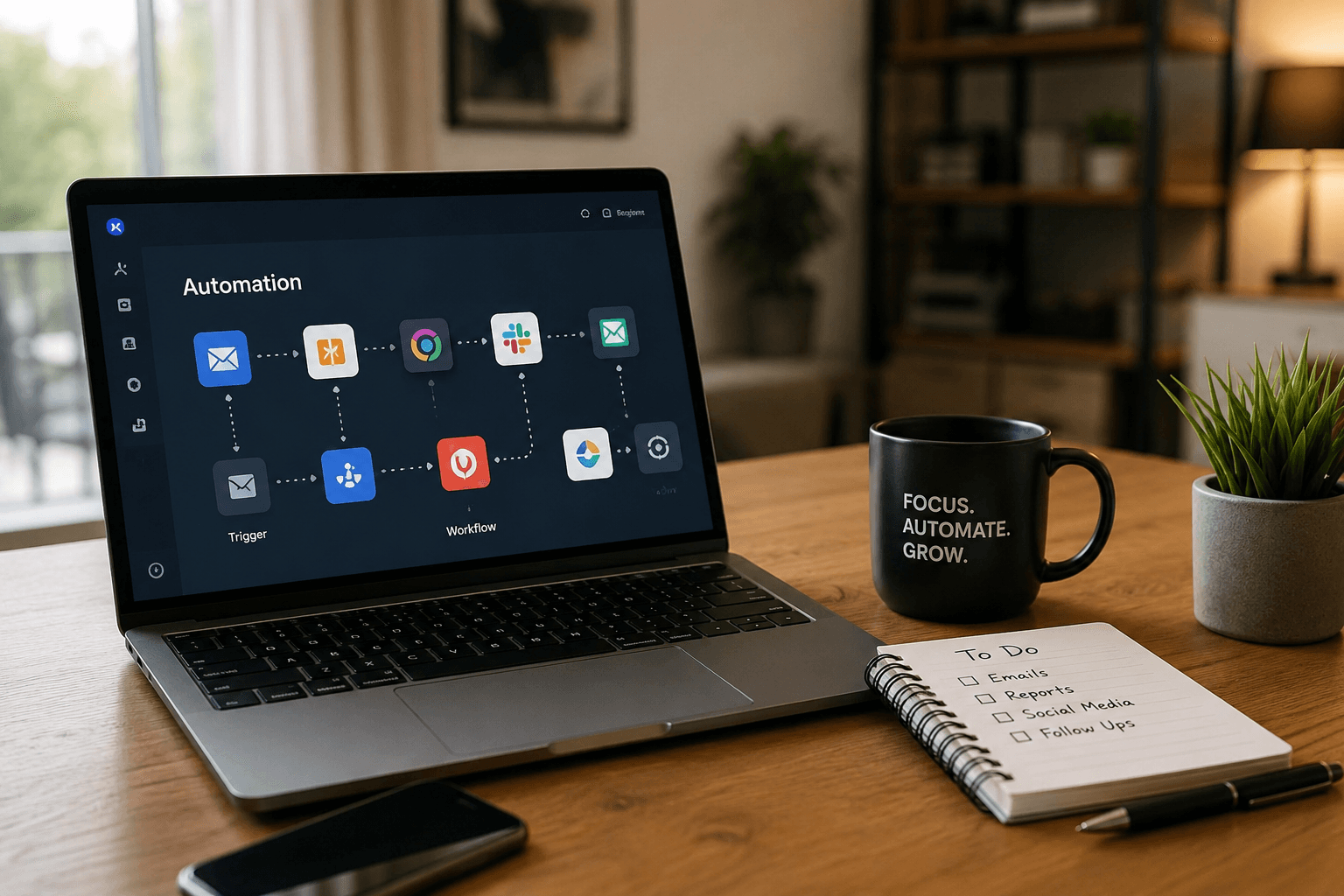
Discover the Best Automation Apps to save time every day with no-code workflows, AI routines, app integrations, reminders, and task automation.
Every day, people waste time on small repeated tasks.
Introduction
Every day, people waste time on small repeated tasks.
You check emails, copy data, save attachments, update spreadsheets, post content, send reminders, organize files, track tasks, manage leads, reply to messages, and switch between apps again and again.
Individually, these tasks may take only a few minutes. But together, they can quietly waste hours every week.
The Best Automation Apps help you save time by connecting your apps, creating workflows, setting triggers, automating reminders, running routines, moving data, and reducing manual work.
Automation is not only for large companies or developers. Today, students, freelancers, small business owners, marketers, content creators, office workers, and daily mobile users can automate tasks without writing code.
This guide compares ten of the Best Automation Apps to save time every day in 2026.
For more productivity, business, AI, and app recommendation guides, explore Apps Hunt, where we publish practical app reviews and digital solution guides for everyday users.
App features, pricing, free limits, supported integrations, AI tools, mobile access, and automation limits may change. Always check the official website or app-store listing before subscribing.
How We Selected the Best Automation Apps
Automation apps are not all the same. Some connect business apps. Some automate phones. Some automate browser tasks. Some automate project boards, databases, smart-home devices, or daily reminders.
For this comparison, we considered:
- Ease of use
- No-code workflow building
- Number of supported apps
- Mobile app support
- Business workflow automation
- Personal routine automation
- AI automation features
- Trigger and action flexibility
- Templates and ready-made workflows
- Free-plan usefulness
- Paid-plan value
- Reliability
- Security and permission controls
- Beginner friendliness
- Usefulness for students, freelancers, creators, teams, and small businesses
The rankings are editorial recommendations. The best automation app depends on your device, daily tasks, apps you already use, budget, and whether you need personal automation or business workflow automation.
You can also explore more business workflow tools in the Business Apps & Tools section on Apps Hunt.
Why Use Automation Apps?
Automation apps help reduce repetitive work.
Instead of doing the same task manually every day, you can create a rule such as:
- When a form is submitted, add the lead to a spreadsheet.
- When a customer books a call, send a confirmation email.
- When a file is uploaded, notify the team.
- When a task is completed, move it to another list.
- When you arrive at work, turn on silent mode.
- When WiFi disconnects, send yourself a reminder.
- When a social post goes live, save the link.
- When a payment is received, update a tracker.
- When a new email arrives, create a task.
- When bedtime starts, run a focus or sleep routine.
Automation saves time because the system handles repeated steps for you.
A good automation app can help you:
- Reduce manual work
- Save daily time
- Avoid forgetting tasks
- Improve team workflows
- Connect apps together
- Move data automatically
- Send reminders
- Organize files
- Improve productivity
- Reduce errors
- Create repeatable systems
- Focus on important work
Automation is not about becoming lazy. It is about removing repetitive tasks so you can spend more time on valuable work.
Important Automation Safety Note
Automation apps often need access to accounts, files, emails, calendars, forms, spreadsheets, tasks, messages, or cloud storage.
Before connecting apps, review:
- Account permissions
- Data access
- Connected apps
- Workflow logs
- Team access
- Admin settings
- Privacy policy
- Security controls
- API limits
- Billing rules
- Automation history
- Data deletion options
Do not connect sensitive accounts to unknown tools. Avoid automations that expose private data, send messages without review, or change important records without confirmation.
For business-critical workflows, always test automation before turning it on.
1. Zapier — Best Overall Automation App for Connecting Apps
Zapier is one of the most popular no-code automation platforms.
It connects apps through automated workflows called Zaps. A Zap usually starts with a trigger and then performs one or more actions.
For example, a new form response can create a spreadsheet row, send a Slack message, add a CRM lead, and create a task automatically.
Zapier is useful for freelancers, small businesses, marketers, agencies, content creators, and teams that use many different apps.
Key Features
- No-code workflow builder
- Trigger-and-action workflows
- Large app integration library
- Multi-step automations
- Filters and paths
- Webhooks on supported plans
- AI workflow tools
- Tables and interfaces
- Team collaboration features
- App directory
- Templates
- Free and paid plans
Best For
Zapier is best for users who want to connect many apps and automate repetitive workflows without coding.
Possible Limitation
Zapier can become expensive when you run many tasks. Some advanced features require paid plans.
2. Make — Best Visual Automation App
Make is a visual no-code automation platform that lets users build workflows using scenarios.
Instead of a simple linear workflow, Make gives a visual builder where users can connect modules, set conditions, route data, transform information, and create detailed automations.
Make is especially useful for people who want more control over how data moves between apps.
It is a strong option for operations teams, agencies, automation builders, ecommerce teams, marketers, and small businesses.
Key Features
- Visual workflow builder
- No-code automation scenarios
- App integrations
- Multi-step workflows
- Routers and filters
- Data transformation
- Scheduling
- Error handling
- Templates
- Webhooks
- AI modules on supported workflows
- Free and paid plans
Best For
Make is best for users who want visual workflow automation with more control than simple trigger-action tools.
Possible Limitation
Make may require more learning than beginner-friendly tools such as IFTTT or basic Zapier workflows.
3. IFTTT — Best Simple Automation App for Daily Routines
IFTTT is one of the easiest automation apps for beginners.
It uses Applets to connect services. The idea is simple: if something happens, then another action happens.
For example:
- If you post on one platform, save the post link.
- If it is going to rain, get a notification.
- If you arrive home, turn on smart lights.
- If a new file is uploaded, save a copy.
- If a smart device changes status, trigger another action.
IFTTT is useful for personal productivity, smart-home users, creators, simple reminders, and mobile routines.
Key Features
- Simple Applets
- App and device connections
- Smart-home automation
- Mobile automation
- Location-based automation
- Weather-based triggers
- Social media workflows
- Notifications
- AI Applets where available
- Android and iPhone apps
- Free and paid options
- Beginner-friendly design
Best For
IFTTT is best for beginners who want simple automations for daily life, smart-home devices, notifications, and personal routines.
Possible Limitation
IFTTT is simple, but it may not be powerful enough for complex business workflows.
For short app tips, automation ideas, and quick tool recommendations, follow Apps Hunt on TikTok.
4. Microsoft Power Automate — Best for Microsoft 365 Workflows
Microsoft Power Automate is a strong automation platform for people and businesses already using Microsoft tools.
It can automate workflows across Microsoft 365, Teams, SharePoint, Outlook, Excel, OneDrive, approvals, notifications, forms, and many third-party services.
Power Automate is useful for office workers, businesses, schools, operations teams, and companies that depend on Microsoft apps.
For example, you can create approval workflows, save email attachments, send reminders, collect form data, update spreadsheets, and automate internal processes.
Key Features
- Cloud flows
- Desktop flows
- Microsoft 365 automation
- Outlook and Teams workflows
- SharePoint and Excel automation
- Approval workflows
- Notifications
- Connectors
- Templates
- AI and Copilot-related workflow support where available
- Business process automation
- Enterprise controls
Best For
Microsoft Power Automate is best for teams that use Microsoft 365 and need business workflow automation.
Possible Limitation
Power Automate may feel complex for casual users. Some advanced automation, connectors, and enterprise features require paid plans or admin setup.
5. Apple Shortcuts — Best Automation App for iPhone and iPad Users
Apple Shortcuts is built into the Apple ecosystem and is one of the best automation apps for iPhone and iPad users.
It lets users create shortcuts and personal automations using actions from Apple apps, system settings, and supported third-party apps.
Apple Shortcuts can help automate everyday phone tasks, such as sending messages, changing focus modes, starting playlists, opening apps, logging habits, creating notes, saving files, setting reminders, and running routines based on time, location, app use, device settings, or other triggers.
Key Features
- Personal automations
- Shortcut actions
- App integrations
- Home Screen shortcuts
- Siri support
- Share Sheet actions
- Focus mode workflows
- Time-based triggers
- Location-based triggers
- Apple ecosystem support
- iPhone and iPad support
- Free Apple app
Best For
Apple Shortcuts is best for iPhone and iPad users who want to automate phone routines and Apple ecosystem tasks.
Possible Limitation
Some automations may require confirmation or may depend on iOS permissions, supported apps, and device settings.
6. Tasker — Best Android Automation App for Power Users
Tasker is a powerful Android automation app for users who want deep control over their phone.
It can automate actions based on conditions such as time, location, app activity, device state, battery level, WiFi connection, notifications, and other triggers.
Tasker is useful for Android users who want advanced phone automation. It can help with silent mode, WiFi actions, auto messages, reminders, screen settings, app launches, file actions, and custom workflows.
For technical users, Tasker can become a powerful personal automation system.
Key Features
- Android device automation
- Profiles and tasks
- Time-based triggers
- Location-based triggers
- App-based triggers
- WiFi and Bluetooth actions
- Notification automation
- System setting actions
- Plugin support
- Custom workflows
- Powerful condition logic
- Paid Android app
Best For
Tasker is best for Android power users who want advanced phone automation and custom routines.
Possible Limitation
Tasker has a learning curve. Beginners may prefer IFTTT, Google Assistant Routines, or built-in Android routines before moving to Tasker.
If your daily automation includes improving WiFi checks, signal testing, and network troubleshooting, you can download WiFiHorizon: AI WiFi Analyzer on Google Play.
7. Bardeen — Best AI Browser Automation App
Bardeen is an AI-powered automation platform that runs in the browser.
It helps users automate web tasks, extract data, summarize information, update tools, create workflows, and run browser-based playbooks.
Bardeen is useful for sales teams, researchers, recruiters, marketers, freelancers, content creators, and anyone who spends a lot of time working in browser tabs.
Its AI builder can help users describe what they want to automate and generate workflows.
Key Features
- Browser automation
- AI-powered workflow builder
- Playbooks
- Web data extraction
- App integrations
- CRM updates
- Research workflows
- Meeting and email workflows
- Sales automation
- Recruiting workflows
- Browser extension
- Free and paid options
Best For
Bardeen is best for users who want to automate repetitive browser-based work and web research tasks.
Possible Limitation
Bardeen works best for browser workflows. Users who need phone automation or smart-home routines may prefer Apple Shortcuts, Tasker, or IFTTT.
For AI-powered tools, productivity workflows, and digital app ideas, explore AI App Space.
8. Trello Automation — Best for Task Board Automation
Trello includes built-in automation features that help users automate cards, boards, lists, buttons, and commands.
It is useful for teams and individuals who manage work visually through boards.
For example, Trello automation can move cards when labels are added, assign team members, set due dates, create checklist items, send reminders, and organize boards automatically.
This can save time for project managers, content teams, freelancers, agencies, students, and small businesses.
Key Features
- Board automation
- Rule-based automation
- Card buttons
- Board buttons
- Due-date commands
- Calendar commands
- Checklist automation
- Assignments
- List movement
- Notifications
- No-code setup
- Built into Trello boards
Best For
Trello Automation is best for users who already manage projects, content calendars, client work, or team tasks in Trello.
Possible Limitation
Trello automation is best inside Trello. For cross-app workflows, Zapier, Make, or Power Automate may be better.
For more tools that help manage tasks and projects, explore the Productivity Apps section on Apps Hunt.
9. Airtable Automations — Best for Database Workflow Automation
Airtable Automations are useful for teams that store work in Airtable bases.
Airtable can automate tasks when records are created, updated, matched to conditions, or moved through a workflow. It can also send notifications, create records, update records, send emails, and connect with other apps.
This is useful for teams managing content calendars, customer lists, inventory, leads, projects, hiring pipelines, support requests, or operations databases.
Key Features
- Trigger-action automations
- Record-based workflows
- Notifications
- Email actions
- Record creation
- Record updates
- Conditional workflows
- App integrations
- Database workflows
- AI-supported workflows where available
- Team collaboration
- Templates
Best For
Airtable Automations are best for teams that use Airtable as a database, tracker, CRM, content calendar, or operations workspace.
Possible Limitation
Airtable automations depend on your Airtable plan and automation run limits. Complex workflows may require careful setup.
10. Google Assistant Routines — Best for Voice and Smart-Home Automation
Google Assistant Routines help automate daily routines through voice commands, schedules, device actions, and smart-home triggers.
For example, a morning routine can tell you the weather, read your calendar, turn on lights, start music, and adjust connected devices.
Google Assistant Routines are useful for Android users, Google Home users, families, smart-home setups, and people who want simple voice-based automation.
Key Features
- Voice-triggered routines
- Scheduled routines
- Smart-home actions
- Custom commands
- Morning routines
- Bedtime routines
- Notifications
- Device control
- Music and media actions
- Calendar and reminder support
- Android and Google Home support
- Family and household routines
Best For
Google Assistant Routines are best for users who want simple voice-based and smart-home automation.
Possible Limitation
Routines depend on supported devices, services, account settings, and regional availability.
How to Choose the Best Automation App
The best automation app depends on what you want to automate.
Choose Zapier for App Connections
Zapier is best if you want to connect business apps, forms, spreadsheets, CRMs, email tools, and task managers.
Choose Make for Visual Workflows
Make is useful if you want more visual control over complex workflows.
Choose IFTTT for Simple Daily Automation
IFTTT is best for basic personal automations, smart-home applets, and easy notifications.
Choose Power Automate for Microsoft Workflows
Power Automate is the strongest option if your business uses Outlook, Teams, SharePoint, Excel, OneDrive, or Microsoft 365.
Choose Apple Shortcuts for iPhone
Apple Shortcuts is best for automating iPhone and iPad routines.
Choose Tasker for Android Power Use
Tasker is best for Android users who want deeper automation based on phone conditions.
Choose Bardeen for Browser Work
Bardeen is useful if you want to automate browser tasks, research, web data collection, and CRM updates.
Choose Trello Automation for Boards
Trello Automation is best if your work is managed inside Trello boards.
Choose Airtable Automations for Databases
Airtable Automations are useful when your work is stored in Airtable bases.
Choose Google Assistant Routines for Smart Home
Google Assistant Routines are best for voice commands, smart-home routines, and daily reminders.
Features to Look for in Automation Apps
Before choosing an automation app, check the features that match your daily workflow.
App Integrations
A good automation app should connect with tools you already use.
Common integrations include:
- Gmail
- Outlook
- Google Sheets
- Excel
- Slack
- Microsoft Teams
- Notion
- Trello
- Airtable
- Google Drive
- Dropbox
- Shopify
- WordPress
- CRM tools
- Calendar apps
- Social media platforms
Triggers and Actions
Automation depends on triggers and actions.
Examples of triggers:
- New email received
- New form submitted
- New row added
- File uploaded
- Task completed
- Card moved
- Time of day
- Location change
- Button pressed
- New social post
- Device connected to WiFi
Examples of actions:
- Send email
- Create task
- Add spreadsheet row
- Move file
- Send notification
- Update CRM lead
- Create calendar event
- Post message
- Rename file
- Start focus mode
Templates
Templates help beginners start faster.
Look for templates for:
- Lead management
- Email follow-up
- Meeting reminders
- Social media posting
- Task creation
- File backup
- Form responses
- Invoice reminders
- Customer support
- Content calendars
- Project updates
Mobile Automation
Mobile automation is useful when you want phone-based routines.
Look for:
- iPhone automation
- Android automation
- Location triggers
- Focus modes
- Notification actions
- WiFi triggers
- Bluetooth triggers
- App launch triggers
- Voice commands
AI Automation
AI automation can help with:
- Summarizing emails
- Drafting replies
- Categorizing data
- Extracting information
- Research assistance
- CRM notes
- Content ideas
- Meeting summaries
- Support responses
- Smart workflow building
Use AI automation carefully when handling private, financial, legal, medical, or customer data.
Team Collaboration
For business use, check whether the app supports:
- Shared workflows
- Team permissions
- Admin controls
- Activity logs
- Error alerts
- Workflow ownership
- Version history
- Approval steps
- Workspace roles
- Audit controls
Security and Privacy
Automation tools may access important business data.
Review:
- Permissions
- OAuth access
- Connected accounts
- Data storage
- Workflow logs
- Team access
- Encryption
- Privacy policy
- Account deletion
- Security certifications where available
Daily Tasks You Can Automate
Email Automation
You can automate:
- Save email attachments
- Send follow-up reminders
- Create tasks from important emails
- Label messages
- Archive newsletters
- Notify team members
- Add contacts to CRM
File Automation
You can automate:
- Save files to cloud folders
- Rename files
- Convert files
- Back up attachments
- Organize documents
- Notify team when files are uploaded
- Move files after approval
Task Automation
You can automate:
- Create recurring tasks
- Move completed tasks
- Assign team members
- Set due dates
- Send status updates
- Create checklists
- Notify when deadlines are near
Social Media Automation
You can automate:
- Save published post links
- Track content ideas
- Create reminders
- Move content through approval stages
- Notify when drafts are ready
- Add analytics data to spreadsheets
Business Automation
Small businesses can automate:
- Lead capture
- Quote requests
- Invoice reminders
- Customer onboarding
- Appointment confirmations
- Feedback forms
- Support tickets
- Inventory updates
- Payroll reminders
- Staff scheduling
For more business-focused software recommendations, visit the Business Apps & Tools section on Apps Hunt.
Personal Routine Automation
You can automate:
- Morning reminders
- Bedtime routines
- Focus mode
- Silent mode
- Smart lights
- Calendar alerts
- Daily notes
- Health reminders
- Water reminders
- WiFi checks
Best Automation Apps by Use Case
Best for Beginners
- IFTTT
- Apple Shortcuts
- Google Assistant Routines
- Zapier
- Trello Automation
Best for Business Workflows
- Zapier
- Make
- Microsoft Power Automate
- Airtable Automations
- Rippling workflow tools where relevant
Best for Mobile Automation
- Apple Shortcuts
- Tasker
- Google Assistant Routines
- IFTTT
Best for AI Automation
- Zapier
- Make
- Bardeen
- Microsoft Power Automate
- Airtable AI-supported workflows where available
Best for Project Automation
- Trello Automation
- Airtable Automations
- Zapier
- Make
- Power Automate
Best for Smart Home
- IFTTT
- Google Assistant Routines
- Apple Shortcuts
- Smart-home app routines
Best for Browser Work
- Bardeen
- Zapier browser-related workflows
- Make web automation integrations
Common Automation Mistakes to Avoid
Automating Without Understanding the Task
Do the task manually first. Understand the steps before automating it.
Connecting Too Many Apps Too Quickly
Start small. One reliable automation is better than ten broken workflows.
Ignoring Permissions
Automation apps may access important data. Review permissions carefully.
Forgetting to Test
Always test automation with sample data before using it for real work.
Not Checking Error Logs
Automations can fail because of expired logins, changed app permissions, missing fields, or plan limits.
Automating Sensitive Messages Without Review
Be careful with workflows that send emails, customer messages, invoices, or public posts automatically.
Using Automation Instead of Better Process Design
Automation cannot fix a bad process. First simplify the process, then automate it.
Not Reviewing Billing Limits
Some automation platforms charge based on tasks, operations, runs, or premium connectors. Check limits before scaling.
Simple Automation Setup for Beginners
A beginner-friendly automation setup can look like this:
- List your repeated daily tasks.
- Choose one task that wastes time every day.
- Write the trigger and action.
- Pick the app that supports your workflow.
- Use a ready-made template.
- Test with sample data.
- Turn on the automation.
- Monitor it for one week.
- Fix errors.
- Add another automation only when the first one works.
Start with small automations, such as:
- Save attachments to Google Drive
- Add form responses to Google Sheets
- Create tasks from emails
- Send meeting reminders
- Move Trello cards automatically
- Turn on focus mode at work time
- Run a morning routine
- Track WiFi issues with a useful network app
For daily productivity, tool roundups, and app workflow ideas, visit Apps Hunt.
Which Automation App Should You Choose?
Choose Zapier if you want the easiest way to connect many apps.
Choose Make if you want a visual automation builder with more workflow control.
Choose IFTTT if you want simple personal, smart-home, and daily routine automations.
Choose Microsoft Power Automate if your business uses Microsoft 365.
Choose Apple Shortcuts if you use iPhone or iPad.
Choose Tasker if you are an Android power user.
Choose Bardeen if you want AI-powered browser automation.
Choose Trello Automation if you manage tasks and projects inside Trello.
Choose Airtable Automations if your work lives inside Airtable databases.
Choose Google Assistant Routines if you want voice and smart-home routines.
Final Thoughts
The Best Automation Apps can help users save time every day by reducing repeated work, connecting apps, creating reminders, running routines, organizing data, and improving productivity.
Zapier is one of the best overall choices for app-to-app automation. Make is strong for visual workflows. IFTTT is excellent for simple daily automation. Microsoft Power Automate is powerful for Microsoft 365 users.
Apple Shortcuts is useful for iPhone routines, while Tasker gives Android power users deeper control. Bardeen helps automate browser tasks, Trello Automation improves board workflows, Airtable Automations support database processes, and Google Assistant Routines help with voice and smart-home tasks.
The best automation app is the one that removes real friction from your day.
Start with one repeated task. Automate it carefully. Test it. Review it. Then build more automation step by step.
For more business, productivity, AI, and daily app recommendations, visit Apps Hunt. You can also explore AI-powered tools and digital solutions at AI App Space.
Explore more productivity app guides on Apps Hunt
Frequently asked questions
Zapier, Make, IFTTT, Microsoft Power Automate, Apple Shortcuts, Tasker, Bardeen, Trello Automation, Airtable Automations, and Google Assistant Routines are useful automation apps for saving daily time.
IFTTT, Apple Shortcuts, Google Assistant Routines, Trello Automation, and Zapier are beginner-friendly automation apps. They offer simple triggers, templates, app connections, and easy workflows.
Zapier, Make, Microsoft Power Automate, Airtable Automations, and Trello Automation are useful for business workflows such as lead capture, file organization, task creation, approvals, and team notifications.
Tasker is one of the most powerful Android automation apps for advanced users. IFTTT and Google Assistant Routines are easier options for beginners who want simple Android routines.
Apple Shortcuts is the best built-in automation app for iPhone and iPad users. It can automate personal routines, app actions, focus modes, reminders, files, and Apple ecosystem tasks.
Many automation apps offer free plans or free trials, but advanced features, higher task limits, premium integrations, team controls, and AI automation may require paid plans.
Automation apps can reduce repetitive manual work, but they should not replace human review for sensitive tasks such as customer messages, payments, legal documents, health data, or important business decisions.
You can automate email sorting, file saving, task creation, calendar reminders, form responses, social media tracking, project updates, smart-home routines, focus modes, and business notifications.
Trusted automation apps can be safe when configured carefully. Users should review permissions, connected accounts, privacy policies, workflow logs, team access, and data-sharing settings before enabling automations.
Beginners should start with one repeated task, choose a simple trigger and action, use a ready-made template, test the workflow, monitor it for errors, and then add more automations gradually.