
Wondering who is connected to your WiFi? Learn to inspect devices, recognize unfamiliar connections, assess network security and troubleshoot with a WiFi analyzer.
A household may have phones, laptops, smart TVs, cameras, tablets and speakers connected at once. When video calls stutter or a router shows an unfamiliar device, it is natural to ask: who is using my WiFi? The answer requires careful checking, not panic. An unknown label is not proof that someone has broken into the network. In 2025, the ITU estimated 6 billion people were online worldwide. That figure describes internet adoption rather than the number of connected home devices or security incidents. As everyday activity depends on connectivity, understanding the local network is increasingly useful.
When the network feels crowded, questions follow
A household may have phones, laptops, smart TVs, cameras, tablets and speakers connected at once. When video calls stutter or a router shows an unfamiliar device, it is natural to ask: who is using my WiFi? The answer requires careful checking, not panic. An unknown label is not proof that someone has broken into the network. In 2025, the ITU estimated 6 billion people were online worldwide. That figure describes internet adoption rather than the number of connected home devices or security incidents. As everyday activity depends on connectivity, understanding the local network is increasingly useful.
Start with a connected-device inventory
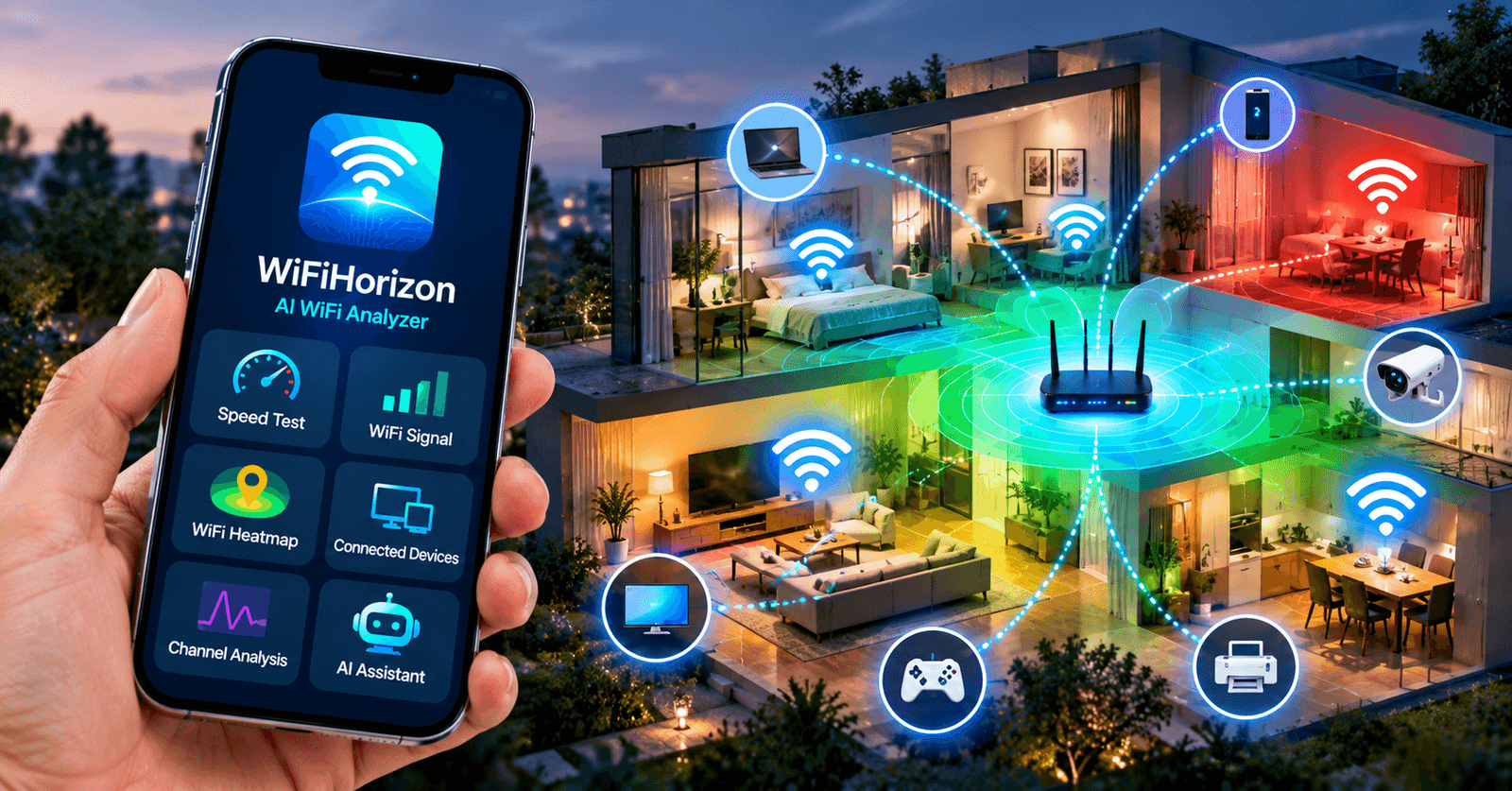
Open the router’s administration interface or use a local-network scanning tool to review devices visible on your WiFi. WiFiHorizon: AI WiFi Analyzer includes a connected-device scanner that can display available device details and help distinguish phones, computers, TVs, routers and other equipment. Make a simple list of devices you own. Compare names, manufacturer hints and network addresses when available. Some devices use randomized addresses, generic labels or sleep modes, so identification may require checking the router and turning a device off temporarily to see whether its entry disappears.
What an unfamiliar device does—and does not—mean
A newly visible entry could be a guest phone, a smart plug, a printer or a device with a private MAC address. Some scanners cannot see every device because of guest-network isolation, permissions, Android restrictions or router configuration. A scan is a snapshot of what the local network makes discoverable. It cannot reliably identify a person behind a device, prove unauthorized access or replace the router’s authoritative client list. WiFiHorizon explicitly notes that device information varies by network and Android limitations.
Practical steps if you suspect unauthorized access
First, check the router’s client list and match known devices. Second, change the WiFi password if you cannot account for a connection, using a long, unique passphrase. Third, enable WPA3-Personal where supported, or WPA2-AES when WPA3 is unavailable. Fourth, disable WPS if it is unnecessary and install trusted router firmware updates. Use a separate guest network for visitors and untrusted smart-home devices when your router supports it. Reconnect trusted devices after changing credentials. If a suspicious device returns, consult router logs or your ISP for further investigation.
Sources and further reading
- International Telecommunication Union, Facts and Figures 2025
- ITU, 2025 press release
- Ofcom, Connected Nations 2025
Public WiFi needs a different kind of caution
Open wireless networks do not provide the same access-point authentication and encryption protections as properly configured private networks. WiFiHorizon can flag open or potentially insecure networks, supporting awareness before you connect. Avoid entering sensitive information on suspicious networks, verify the network name with the venue, keep devices updated and prefer HTTPS services. A warning is an indicator for review, not proof of an active attack.
Slow WiFi may be congestion, not an intruder
Many legitimate devices can consume bandwidth at the same time: cloud backups, game downloads, video streaming and software updates are common examples. Test download, upload and ping, inspect WiFi channel congestion and compare signal strength in the affected room. WiFiHorizon brings speed testing, signal graphs, channel analysis, a WiFi health score and AI explanations together. The health score is a helpful summary, not a formal security audit. AI recommendations can suggest where to investigate but should be verified against router settings and observed results.
A home network check you can repeat monthly
Review connected devices, remove equipment you no longer own, confirm encryption settings update the router, check guest-network access and retest coverage where people work or study. If connectivity still feels unreliable, a room-by-room walk or heatmap can reveal whether the real problem is weak signal rather than network misuse. WiFiHorizon supports 12 listed languages including English, Spanish, Arabic, Hindi and Mandarin Chinese, although availability varies by version and device. The app can be downloaded from Google Play or Amazon Appstore using the links at the beginning of this guide. Its AI assistant includes up to five free chats for new users, followed by subscription access.
Frequently asked questions
Check your router’s connected-client list and compare it with results from a local-network scanner such as WiFiHorizon.
No. It may reveal device information, but it cannot reliably identify the person using a device.
It could be a guest device, smart-home accessory, randomized hardware address or a label the scanner cannot resolve.
No. Open networks lack some protections but an open-network flag alone does not establish compromise.
Changing the password normally requires devices to authenticate again, provided the router uses appropriate security and the new password is not shared.